KleenMic
Quick answer
Download KleenMic for Mac, complete installation and Setup, choose your physical microphone in KleenMic, then select the filtered microphone in your calling app.
Before you install
Apple Silicon · macOS 14 or later.
Install and make your first call
- Check your Mac. Use an Apple Silicon Mac running macOS 14 or later. This release does not support Intel Macs.
- Download and install. Download the Mac PKG from the official KleenMic website. Open it and follow the installer. Approve the administrator prompt for this installation when requested.
- Open KleenMic. Open KleenMic from Applications. Allow microphone access when macOS asks. If it was denied, enable KleenMic in System Settings → Privacy & Security → Microphone, then reopen the app.
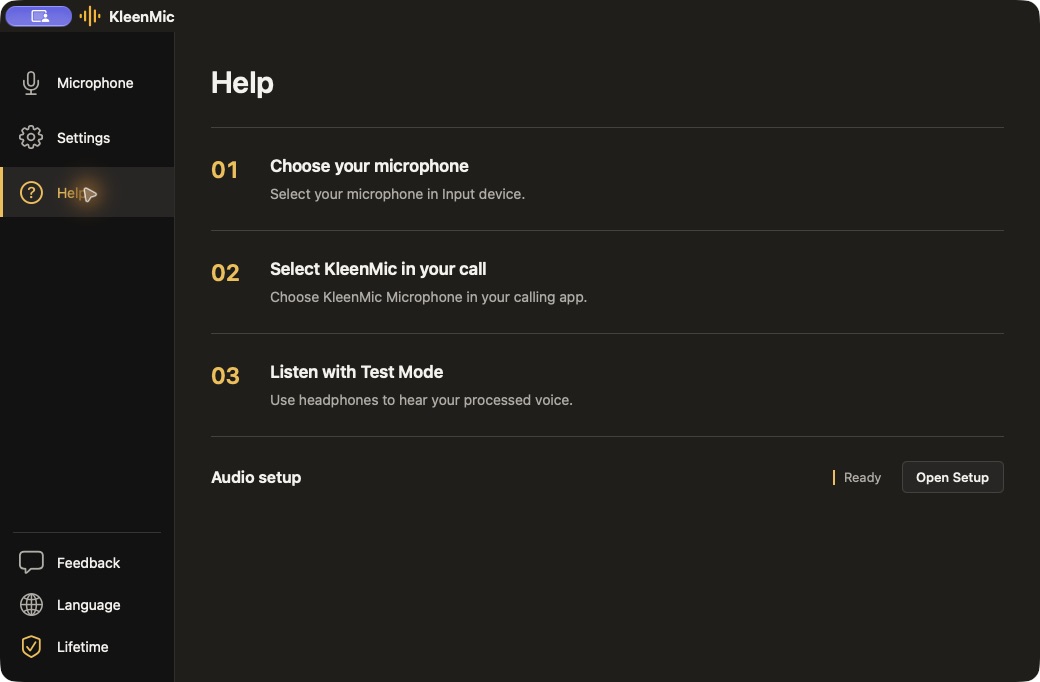
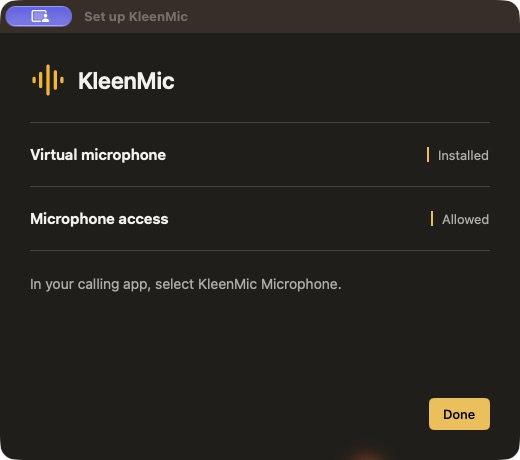
- Finish Setup. Follow KleenMic Setup to check microphone permission and the virtual microphone driver. If a driver action is needed, use the action beside that item and approve the installation prompt.
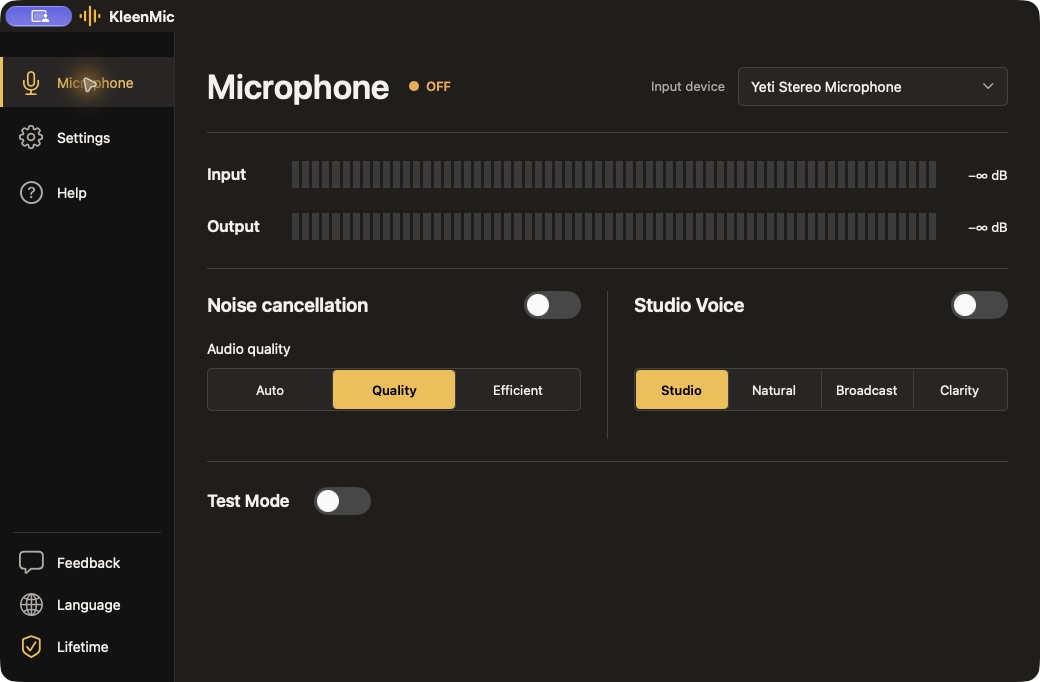
- Choose your input. On the Microphone page, choose your physical built-in, USB or headset microphone. Turn noise removal on and choose a processing mode.
- Listen once. Connect headphones, turn Test Mode on in the full app and speak. Compare modes with the same microphone position. Turn Test Mode off before joining a call.
- Connect your calling app. In your calling app’s audio settings, select KleenMic Microphone as the microphone input. Keep your normal headphones or speakers as its output. Make a short test call.
- Keep KleenMic running. Closing the main window keeps the menu-bar app running. Open the menu-bar panel to change your input or noise cancellation. Quit KleenMic when you want processing to stop.
Using the DMG instead
The DMG download is an alternative to the PKG. Open it, drag KleenMic to Applications, then open KleenMic and use Setup to install the virtual microphone driver. Copying the app alone does not install the driver.
If the microphone is missing
Check that your physical microphone is connected and selected in KleenMic. Use the driver recovery action in Setup if the virtual microphone is missing, then reopen your calling app and select the filtered input again. Check microphone permission for both KleenMic and the calling app.
Common questions
Do I select my physical microphone in the calling app?
Select the physical microphone in KleenMic. Select KleenMic’s filtered microphone in the calling app.
Should Test Mode stay on during a call?
No. Use headphones for your listening check, then turn Test Mode off before the call.
Sources and current details
Details reviewed on 28 October 2026. Older interface examples are dated in their captions. App menus and plan details can change.