KleenMic
Quick answer
NVIDIA’s current Broadcast downloads list Windows platforms, with supported NVIDIA hardware; there is no native macOS download. On Mac, start with Voice Isolation or your calling app’s controls. KleenMic is another option for outgoing microphone filtering on Apple Silicon, but it does not replace Broadcast’s camera or incoming-audio features.
We make KleenMic. This guide compares documented feature scope and describes checks you can run on your Mac; it does not rank the tools by measured audio quality.
Can you install NVIDIA Broadcast on a Mac?
The official NVIDIA Broadcast download page lists Windows, not macOS. A Windows-on-Arm entry is still a Windows release; it is not a Mac version. Check the current platform and hardware requirements before downloading an installer.
If a guide tells you to select NVIDIA Noise Removal inside a Mac app, verify that instruction against that app’s current Mac documentation. A filter available in a Windows tutorial may depend on NVIDIA software that your Mac cannot use. You do not need to recreate that exact Windows chain to improve an ordinary Mac call.
Choose the feature you actually need to replace
Swipe sideways to see every column.
| Your task | What to look for on Mac |
|---|---|
| Reduce noise from your own microphone | Voice Isolation, calling-app suppression, or a dedicated microphone filter |
| Reduce noise you hear from someone else | A tool that explicitly filters incoming or speaker audio |
| Blur a background or adjust camera framing | Camera features in your meeting or recording app |
| Clean an audio file already recorded | A file editor or post-production cleanup tool |
| Reduce room reverberation | Placement or room changes, or a tool explicitly designed for dereverberation |
NVIDIA’s app covers several of these tasks. A product described as a “Broadcast alternative” may replace only one. KleenMic focuses on the microphone signal you send; it does not clean other participants’ incoming audio, change your webcam picture or repair an existing recording.
Start with the free controls already on your Mac
In an app that supports Apple Mic Modes, try Voice Isolation. The available modes and menu depend on the app. Make sure the microphone is active when looking for the control. Our Voice Isolation guide explains the difference between that system feature and a virtual microphone.
Zoom, Teams, Meet and Discord also have their own controls. Try the relevant app’s normal noise-reduction setting with a short sentence and your usual background sound. If words remain clear and the listener is satisfied, you may have your replacement without another installation.
For recording or streaming, OBS documents noise suppression on macOS. That processes a source inside OBS. Do not assume an OBS filter automatically supplies a cleaned microphone to every separate calling app.
When a separate microphone filter makes sense
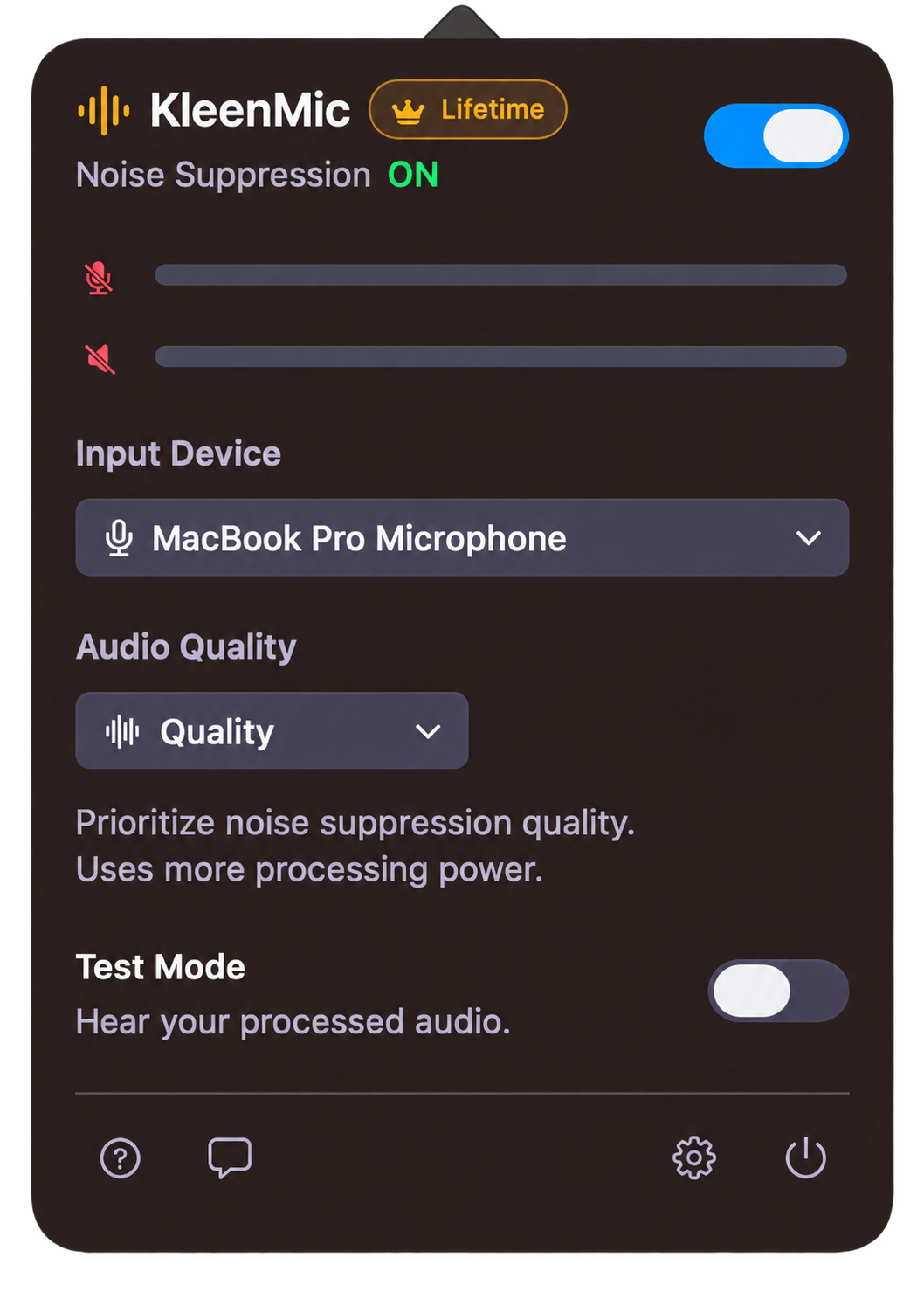
A dedicated filter can be useful when you want a similar microphone route across several apps, rather than maintaining a different noise setup in every one. With KleenMic, select the physical microphone inside KleenMic, then choose KleenMic Microphone as the input in the calling or recording app.
That distinction matters after switching from NVIDIA Broadcast: installing a new utility does not make every application select it. If the meeting still uses the physical MacBook or USB microphone directly, it bypasses KleenMic.
KleenMic requires Apple Silicon and macOS 14 or later. It offers microphone noise removal, echo control and a live Test Mode. Its scope and purchase terms are different from a camera-and-audio suite. For broader choices, see our Mac noise-cancellation comparison.
Rebuild the useful part of your old setup
- Choose one physical input. Keep its position and level steady. A headset, USB microphone and built-in microphone are different tests.
- Check the untreated signal. Read a normal sentence and then a quiet opening word after a pause.
- Add the real noise. Repeat while typing, or with the fan that usually causes trouble.
- Compare one filter at a time. Note the Mac Mic Mode and the calling app’s processing. More active filters can make it harder to identify which one changes the voice.
- Listen from the receiving end. Use a private call with a helper or a second device wearing headphones. Judge whole words as well as quiet pauses.
- Reconnect your usual equipment. Confirm that the app still selects the intended input after a headset or dock change.
Keep the simplest setup that gives the listener a useful improvement. If speech becomes clipped, follow the quiet-word troubleshooting guide before increasing suppression.
Check compatibility and purchase terms before switching
The KleenMic trial lasts 72 hours from first launch and needs no credit card or account. Continuing afterward is an optional $20 USD one-time purchase for one Mac, plus applicable taxes. Trial launches need internet; a paid license needs successful verification at least every 30 days. The trial guide explains those conditions.
Before paying for any alternative, write down the features you would lose as well as the microphone problem you would solve. If your real requirement is incoming-audio filtering or camera effects, choose a product that documents that task. A good microphone result alone does not replace the rest of a Broadcast workflow.
Common questions
Is there an official NVIDIA Broadcast app for macOS?
The current official download page lists Windows platforms, not a native macOS release. Check NVIDIA’s current requirements rather than treating Windows on Arm as Mac support.
Can KleenMic replace every NVIDIA Broadcast feature?
No. KleenMic filters your outgoing microphone and offers echo control. It does not provide Broadcast’s camera effects, incoming-speaker filtering or recorded-file processing.
Do I need a paid app to reduce microphone noise on Mac?
Not necessarily. Try Voice Isolation in a supported app and the controls already in your calling or recording app. A separate filter is useful only if it improves the setup you actually use.
Sources and current details
Details reviewed on 22 October 2026. Older interface examples are dated in their captions. App menus and plan details can change.