KleenMic
Quick answer
Compare the physical microphone with one processing layer at a time. Check voice-activity sensitivity or a noise gate, macOS Mic Mode, the calling app’s suppression and automatic level controls. Listen for complete quiet words before trying stronger noise removal.
Describe the failure before changing a setting
“Cutting out” can describe several sounds. Notice whether a word starts late, slowly fades, becomes distorted or disappears at unpredictable moments. That observation gives you a useful first test; it does not prove one cause.
Swipe sideways to see every column.
| What you hear | Check first |
|---|---|
| Quiet openings disappear after silence | Voice activity, a noise gate and suppression |
| Volume gradually rises or falls | Automatic gain or input-level adjustment |
| Loud syllables crackle or sound harsh | Excessive input gain or microphone overload |
| Whole phrases drop unpredictably | The direct microphone, device connection and call/network path |
If the microphone disappears completely, start with the missing-input checklist. Adding a noise filter is not a repair for a disconnected device.
Make a short speaking test you can repeat
Use headphones and choose a quiet moment. Keep your normal microphone position. Say: “Please send the file before the call.” Pause for three seconds, then repeat at a comfortable, quieter level. Finish with a normal sentence while typing.
First select your physical microphone directly in a local recording app. Note any macOS Mic Mode still active. Listen to the beginning and end of each phrase, not only its overall loudness. An input meter can move even when part of a word is missing.
Next check the same phrase in a private call with a consenting listener or a second device using headphones. A local recording and the remote listener hear different stages of the route. If the local words are intact but the call loses them, investigate the calling app and connection before replacing the microphone.
List the filters in the audio path
A single call can pass through headset processing, macOS Voice Isolation, a virtual microphone and the calling app’s own controls. Write down the layers you enabled. Do not change all of them together.
- Try the physical microphone in the calling app with the simplest available speech settings.
- If macOS offers Mic Mode for that app, compare Standard with Voice Isolation.
- Compare the app’s own noise control on its own.
- If you use a dedicated filter, select its virtual microphone and compare it without adding stronger processing elsewhere.
- Only combine layers after the single-filter results are clear.
Apple says Mic Modes can change audio input, including external inputs. Available controls vary by app. See the Voice Isolation guide when the menu is missing or a recording app sounds different from a call.
Why stronger suppression can remove speech
A filter has to distinguish the voice you want from the sounds you do not. Quiet speech and speech mixed with noise are useful stress cases. Another filter receives the already altered signal and may make a different decision about it.
There is a documented example in Krisp’s Zoom setup guidance: it recommends Low Zoom suppression and warns that Medium or High combined with Krisp can suppress the speaker’s voice. That is guidance for Krisp, not a universal preset for every filter.
With KleenMic or another app, compare your own route. Use the same phrase and change one control. Keep a little background sound if the alternative removes important words. The aim is an understandable conversation, rather than perfectly silent pauses.
Check voice activity, gates and level adjustment
A noise gate reduces or closes the signal below a threshold. If that threshold is too high for your speaking level, quiet openings can fail to get through. Voice-activity controls can create a similar practical symptom. Try the app’s input test while speaking gently and check whether it recognises the start of the phrase.
Do not compensate by turning every gain control up. Higher input gain also raises room noise and can distort louder syllables. Move closer when practical, set a healthy direct input and then revisit the gate or sensitivity setting. For streamers, the OBS guide separates gates from continuous suppression.
If level changes gradually while you speak, compare any automatic microphone-volume option in the calling app. Keep a note of its previous state so you can restore it if the change does not help.
Check a KleenMic route without adding confusion
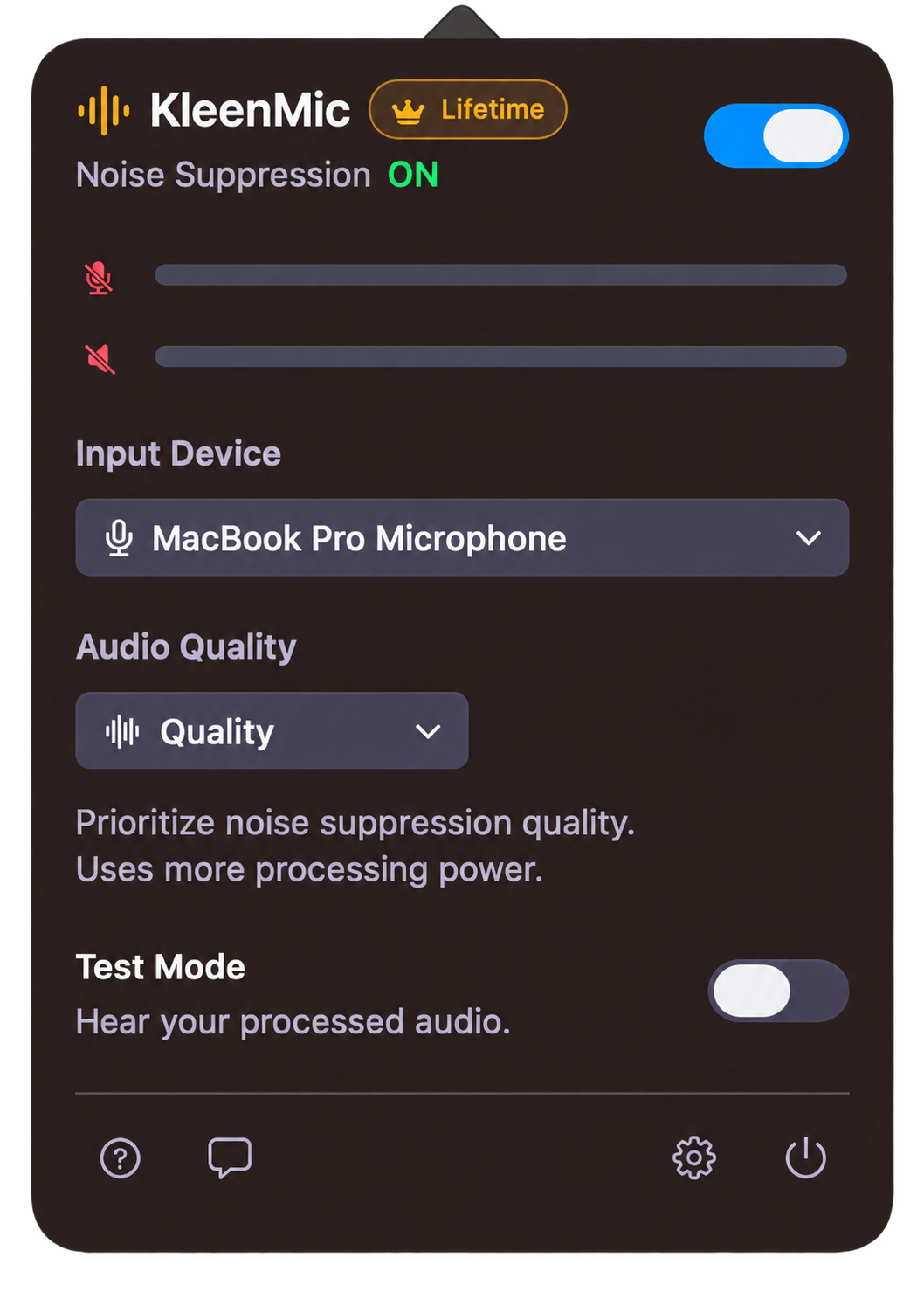
- Select the physical microphone you speak into under Input Device in KleenMic.
- Use headphones for live Test Mode and repeat the short phrase.
- Turn Test Mode off when you finish listening.
- Select KleenMic Microphone in the calling app, keeping your usual playback device.
- Repeat the remote-listener test and note the app’s additional processing.
The setup guide covers installation and permissions. KleenMic requires Apple Silicon and macOS 14 or later; its 72-hour trial is a way to evaluate your own input. No filter is guaranteed to recover speech that was already lost earlier in the chain.
Keep the setting that preserves the conversation
Write down the physical input, mic position, Mic Mode, filter and call-app setting that worked. Check again after connecting a headset or display. An unexpected device change can make yesterday’s setting irrelevant.
If the simplest direct route still loses words locally, try another available microphone or connection. If only the remote call breaks up, test the call path and contact that app’s support with the exact symptom. A short, repeatable example is more useful than describing every failure as “bad noise cancellation.”
More listening examples and the test method
Hear separate keyboard, fan and lower-level speech examples, with the same input and playback gain. Audio test method (English).
Common questions
Should I enable every noise filter for the clearest voice?
Start with one layer and compare. Multiple filters can alter quiet speech, so add another only when it improves the actual result without losing words.
Why does the first word disappear but the rest sound normal?
A gate, voice-activity threshold or suppression decision may affect a quiet start. Compare the direct microphone and one processing layer at a time; the symptom alone does not identify the cause.
Can KleenMic repair speech already missing from my recording?
No. KleenMic filters a live microphone path. It cannot reconstruct words that were never captured or retroactively process a saved file.
Sources and current details
Details reviewed on 22 October 2026. Older interface examples are dated in their captions. App menus and plan details can change.