KleenMic
Quick answer
In Slack, open your profile picture → Preferences → Audio & video. Select the intended microphone, test the input meter and try Slack’s noise suppression first. If using KleenMic, choose your physical input in KleenMic and KleenMic Microphone in Slack.
Choose a microphone and a speaker separately
Slack’s microphone preferences are under your profile picture → Preferences → Audio & video. Under Microphone, select the input you intend to speak into. Say a few words and watch the level meter. Choose your listening device under Speaker.
Headphones do not guarantee that their microphone is selected. A headset can handle playback while the MacBook microphone supplies your voice. That can be a useful setup, but it should be a deliberate choice. After reconnecting a dock, display or headset, check Slack’s input again.
Try Slack’s own noise control first
Slack lists noise suppression and automatic gain control among its microphone options. Suppression addresses background sound; gain control addresses your speaking level. They solve different problems, so change one at a time.
Start with the physical microphone and Slack’s available noise suppression. Read an ordinary sentence while the usual fan or keyboard noise is present. If the other person hears you clearly and the noise is no longer distracting, the built-in setup may be enough. A quieter input meter alone does not prove better sound.
Use a short test that includes quiet words
Ask a colleague to help in a private Huddle before changing a setup used for work. Keep the microphone in the same position and use a normal speaking voice.
- Say: “Please check the first word and the end of this sentence.”
- Pause for a few seconds, then say the sentence more quietly.
- Repeat while typing a short message.
- Stop speaking and leave the background noise running briefly.
- Ask which complete words were missing, rather than only whether the room sounded quieter.
Repeat after changing a single setting. If you record the check, agree on that with everyone involved and listen at a consistent playback level. A real listener can identify problems that a moving meter cannot show.
If your voice fades or words disappear
Write down the processing already active: Slack suppression, automatic gain, a headset utility, Apple Voice Isolation and any separate virtual microphone. You do not need every layer enabled to have a useful call.
For a diagnosis, return to the physical input and compare one processing layer at a time. If your Mac shows a Mic Mode for Slack, compare Standard with the mode you were using; availability varies by app and macOS. Our Voice Isolation guide explains the distinction. Keep whichever combination preserves understandable speech, then recheck your usual background noise.
For a longer decision path, see why a Mac microphone cuts off quiet words. Do not compensate for missing syllables by shouting through every test.
Try a separate filtered microphone when needed
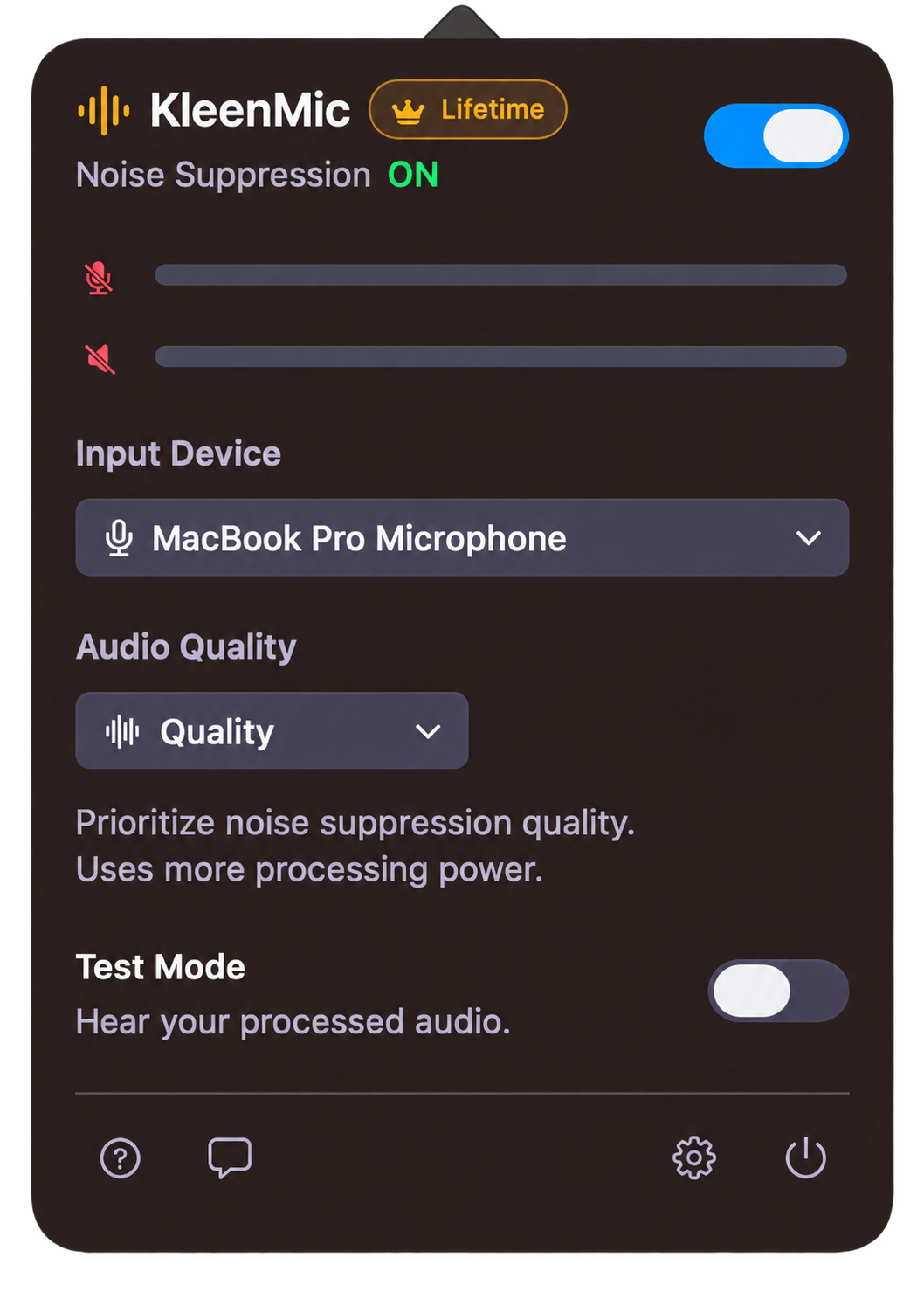
KleenMic is an option when you want a dedicated outgoing microphone filter across your Mac calls. It requires Apple Silicon and macOS 14 or later.
- In KleenMic, select your real microphone under Input Device.
- Enable noise removal and start with Auto.
- In Slack’s microphone menu, select KleenMic Microphone.
- Keep your headphones or speakers selected separately for playback.
- Repeat the private Huddle check, comparing the filters individually before combining them.
Use headphones for KleenMic’s live Test Mode and turn Test Mode off after checking. This route is an instruction to verify on your own setup, not a claim that every Slack version and device combination has been tested here.
Separate a noise problem from a connection problem
Swipe sideways to see every column.
| Symptom | First check |
|---|---|
| No input meter movement | Microphone selection, mute and permission |
| Typing is audible under speech | Mic position and the current suppression setting |
| Quiet words disappear | Gain changes and overlapping processing |
| Speech breaks up with other call problems | Slack’s connection troubleshooting |
Slack provides a test under Audio & video → Troubleshooting → Run test in its desktop app and Chrome. Its troubleshooting guide covers the Huddle panel, connections and input/output checks. It also notes that turning off noise suppression may help performance in large Huddles. Another filter will not repair a failing connection.
Keep the setup you can repeat
Note your physical microphone, Slack input and useful filter settings. Test them again after reconnecting accessories. If the raw microphone itself is silent, follow the Mac microphone troubleshooting guide before adding processing.
KleenMic’s trial lasts 72 hours from first launch, needs no card or account and does not charge automatically. Continuing is an optional $20 one-time purchase for one Mac. Trial launches require internet; a paid license needs verification at least every 30 days. Use the trial guide to plan a real call check.
Common questions
Does Slack have free noise suppression?
Slack documents a built-in noise-suppression option in its microphone preferences. Try that with the correct input before deciding whether you need another filter.
Can KleenMic remove another person’s noise in a Huddle?
KleenMic filters your outgoing microphone. It does not clean the audio you receive from another participant.
Why does my Huddle sound different after connecting a display?
Check the microphone Slack selected. A display or dock can introduce another available input. Confirm the device before adjusting filters.
Sources and current details
Details reviewed on 22 October 2026. Older interface examples are dated in their captions. App menus and plan details can change.