KleenMic
Quick answer
For the classic multi-pattern Blue Yeti, speak toward the front side, try the cardioid pattern for one speaker and bring the microphone closer before adjusting input gain. Confirm that your Mac app actually uses the Yeti. Then compare available noise controls with the same position and voice level.
This walkthrough refers to the classic multi-pattern USB Yeti. Yeti Nano, Yeti X, Yeti GX and Yeti Pro have different controls or connection options; use the manual for your exact model.
Identify the Yeti and the input your app receives
Check the model name and use its matching documentation. The classic Yeti quick-start guide applies to that device. Do not copy knob positions from a photograph unless the controls match yours.
On your Mac, open Sound settings and check the input list. Then check the microphone selected inside Zoom, Discord or your recorder. The two selections can differ. If the call uses a display or laptop microphone, turning the Yeti’s gain knob will not change the signal the other person receives.
For a first check, select the Yeti directly in a local recorder and speak near it. Use headphones for playback. Confirm that the recording responds to the intended microphone before changing filters.
Check the speaking side and pickup pattern
The classic Yeti is addressed from the front side, rather than spoken into from above like a handheld microphone. Face its front toward your mouth. If you are unsure which side that is, use the matching guide instead of guessing from the grille.
For one person at a desk, try the cardioid setting. It favors the front rather than deliberately covering a group around the microphone. It does not make sounds elsewhere in the room disappear. Reflections, distance and a loud keyboard can still matter.
Move your chair and microphone so you can speak comfortably toward that front side without leaning forward for every sentence. Keep the keyboard farther from the microphone where practical. Repeat the same short recording after repositioning, so you can hear whether the voice became clearer relative to the room.
Set the voice level before judging noise
Logitech distinguishes microphone gain from headphone monitoring level. Gain changes the captured input; a headphone volume control changes what you hear in connected headphones. Turning down headphone playback does not remove noise from the signal sent to your call.
Begin at a sensible speaking distance and read a sentence at your normal call volume. Include a louder word. Adjust the input gain so speech is clear and leaves room for that louder moment without distortion. There is no universal knob position: distance, voice level and the room all change the result.
If everything is too quiet after lowering gain, move the microphone closer before raising it again. Lowering the entire signal makes your voice quieter along with the noise. Compare recordings at a comfortable listening level, rather than mistaking a quieter file for a cleaner one.
Name the sound before choosing a fix
Swipe sideways to see every column.
| What you hear | First check |
|---|---|
| A steady fan or room hiss | Move away from the source; compare microphone distance and normal noise suppression |
| Low thumps while typing | Check whether the microphone and keyboard share a vibrating desk or mount |
| Sharp clicks while you speak | Improve microphone and keyboard placement, then compare continuous noise filtering |
| Crunchy or harsh loud words | Lower input gain and check the unprocessed recording for overload |
| Two copies of your own voice | Check hardware monitoring and software monitoring before blaming room noise |
A distant microphone can make the whole room seem louder relative to your voice. A desk thump has a different route from an airborne click. The keyboard-noise guide helps separate those cases before you buy an arm, mount or another app.
Add one noise filter after the physical checks
Try the calling app’s built-in noise control or Apple Voice Isolation where supported. Keep the microphone position and input level unchanged while comparing. Include typing during speech: silence between sentences does not show whether a filter handles a keyboard while you talk.
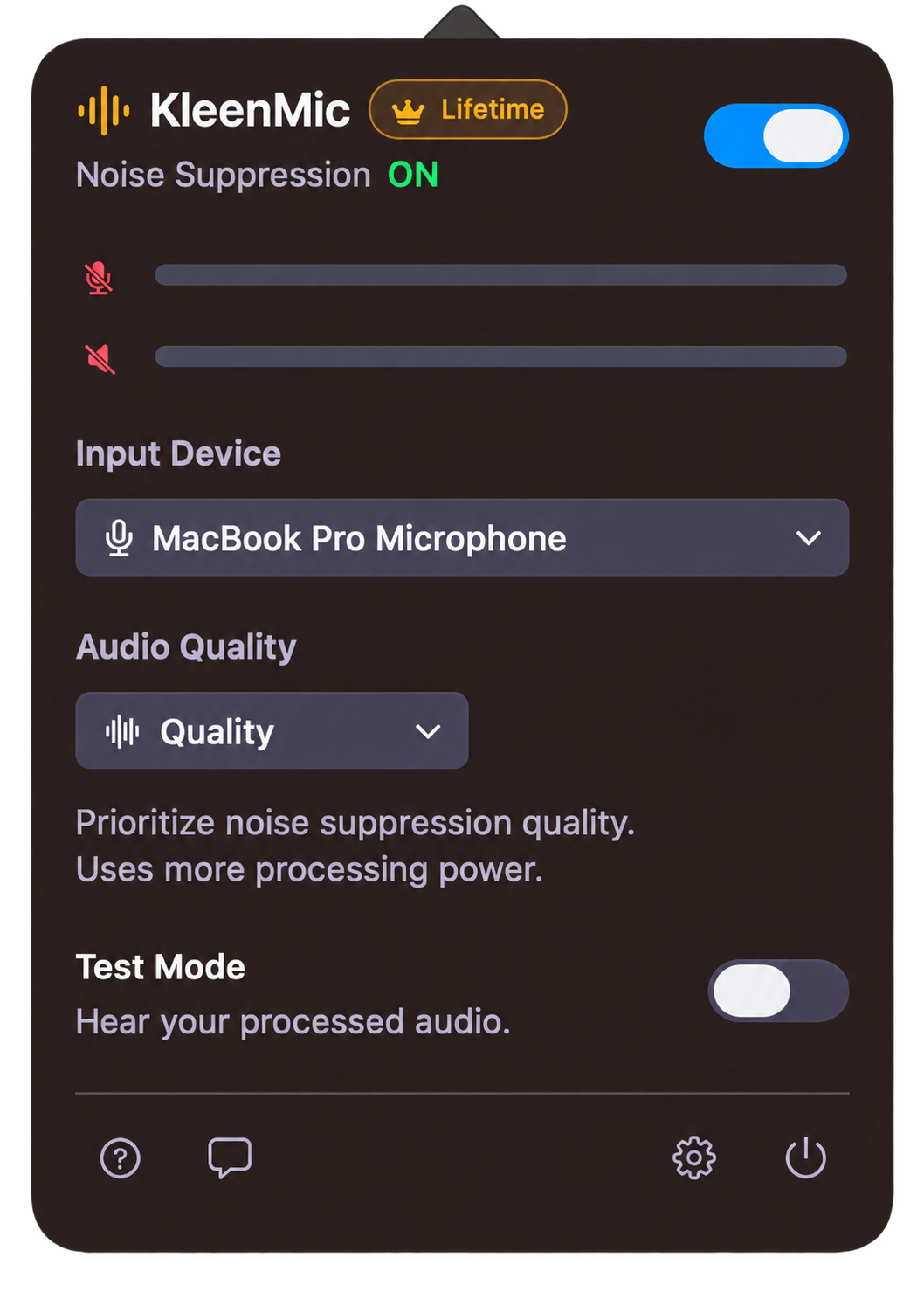
With KleenMic, choose the Yeti as the physical input inside KleenMic. In your calling app, select KleenMic Microphone. Selecting the Yeti directly in that second menu bypasses the separate filter. The setup guide explains the complete route.
Use headphones for live Test Mode and turn Test Mode off afterward. If words become choppy, simplify the active processing rather than turning every control up. KleenMic cannot reconstruct speech already distorted by an overloaded input or repair a damaged USB connection.
Use a short test you can repeat
- Record one normal sentence with the Yeti directly selected and note its position and pattern.
- Repeat with five seconds of typing, then speak and type together.
- Change one physical setting or filter and repeat the same sequence.
- Listen for quiet opening words, word endings and the noise under speech.
- Check a private call from the receiving end before relying on the setup.
You can try KleenMic for 72 hours on an Apple Silicon Mac running macOS 14 or later, without a card or account. Continued use is an optional $20 one-time license for one Mac. Trial launches need internet; paid access needs verification at least every 30 days. Read the trial conditions before choosing.
Common questions
What is the best Blue Yeti gain setting for Mac?
There is no fixed percentage or knob position for every voice and room. Set the microphone position first, then adjust gain using normal speech and a louder word without distortion.
Does cardioid remove all background noise?
No. It changes the pickup pattern, but the microphone can still capture noise and room reflections. Compare placement and the resulting voice before adding suppression.
Why do I hear my voice twice in Yeti headphones?
Check whether both the microphone’s direct monitoring and a software monitoring path are active. A delayed second copy heard only by you is a different problem from echo heard by other callers.
Can noise cancellation repair a clipped Yeti recording?
Do not rely on it for that. First lower input gain and confirm that the direct recording is clean. Preventing overload is different from reducing background sound.
Sources and current details
Details reviewed on 22 October 2026. Older interface examples are dated in their captions. App menus and plan details can change.