KleenMic
Quick answer
Choose the microphone and listening device separately in your calling app. Compare AirPods input with MacBook input while keeping AirPods as the output. Note the AirPods model, firmware, macOS and app: current capabilities differ, and a microphone filter cannot repair Bluetooth bandwidth or faulty hardware.
First identify whose sound is wrong
Ask the other participant a specific question: “Is my voice muffled, or are you hearing extra room noise?” Then check whether music or the other person’s voice also sounds different in your AirPods.
Those observations lead to different tests. Poor playback after an app opens the microphone suggests an input/output interaction. A clear connection with lots of typing suggests microphone pickup. A recording that is bad through every output points elsewhere. Do not judge the outgoing microphone only by how your own voice sounds inside your ears.
Check the model and software before following an old fix
Apple documents a Bluetooth mode change that can reduce playback quality when a headset microphone is in use. Its suggested checks include closing microphone-using apps and reselecting the listening output. That is useful background, not a reason to assume every AirPods setup has identical limits.
Apple’s firmware release notes describe newer recording and call-quality features for supported AirPods, operating systems and apps. Check your model, firmware and macOS before applying advice written for an older combination. Better features in one app do not establish the same result in every browser meeting.
Compare three input and output combinations
Keep the call app, room and listening volume unchanged. Only switch the microphone source between checks.
Swipe sideways to see every column.
| Microphone input | Listening output | What to compare |
|---|---|---|
| AirPods | AirPods | Voice and playback with the headset handling both |
| MacBook microphone | AirPods | Whether changing the input changes the symptom |
| A USB mic you already own | AirPods | A wired-input comparison, if available |
This is a diagnostic plan, not a ranking. A MacBook microphone can pick up more keyboard or room sound because of its position. A headset microphone has a different placement and connection. Listen to the actual result instead of selecting a winner from the device names.
Choose the source inside the calling app
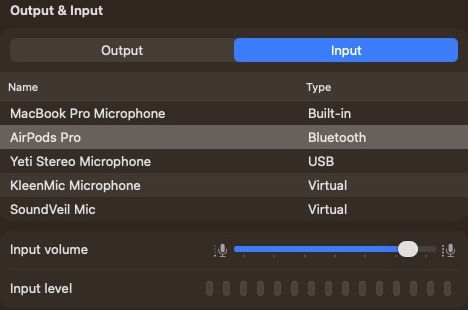
Open your meeting app’s audio settings and select the microphone explicitly. Keep AirPods selected under Speaker or output if you want to continue listening through them. Check the input meter before joining.
For the system-level list, Apple’s Sound Input settings show the available microphones. A calling app can have its own selection, so confirm both rather than assuming a change in one menu changed the other. Our guides show the corresponding starting points for Zoom, Meet and Teams.
Listen to a complete sentence, not just the meter
- Ask someone to listen in a private call, or make an agreed test recording.
- Read the same sentence at a comfortable volume using AirPods input.
- Pause, speak a quiet first word and finish the sentence normally.
- Switch to MacBook input while leaving AirPods as output; repeat from the same seat.
- Repeat with light typing, then without typing.
- Write down whether the change affected playback, your received voice, background sound or all three.
A local recording is useful, but the receiving end includes the meeting app’s processing too. If local speech is clear and the call is not, keep investigating that route. Change one layer at a time so the result remains understandable.
Use filtering for remaining microphone noise
If the better physical input still picks up distracting room sound, try the call app’s own suppression or Apple Voice Isolation where available. Keep quiet words in the test.
You can also evaluate KleenMic on an Apple Silicon Mac with macOS 14 or later. Select the physical microphone in KleenMic, enable noise removal, then choose KleenMic Microphone in your call app. Leave AirPods selected separately for listening. This does not establish that every AirPods/model/app route works identically; check the received sound before relying on it.
KleenMic filters the microphone signal it receives. It cannot recreate audio lost in a connection, repair a damaged microphone or clean the other participant’s incoming voice. See the setup guide for the signal path.
Recheck after a device or app change
Before an important call, confirm the input again after using another device, reconnecting AirPods or attaching a display. Keep a known working alternative ready. If the microphone is missing or silent, use the troubleshooting guide rather than turning noise suppression higher.
The useful outcome is a setup that keeps your words clear and your listening comfortable. If your existing input already does that, keep it. If you want to evaluate KleenMic, its 72-hour trial lets you test your own calls before the optional $20 one-time purchase.
Common questions
Can I listen with AirPods and speak through the MacBook microphone?
A calling app that offers separate input and output menus lets you select that combination. Verify both menus and the received audio in your app.
Will noise cancellation fix low-quality Bluetooth audio?
A microphone filter can reduce noise in the signal it receives. It cannot restore information lost in a connection or fix playback bandwidth. Diagnose input and output separately.
Do all AirPods sound the same on Mac calls?
No universal result is established. Model, firmware, macOS, app support and microphone selection matter. Check the current Apple requirements for your configuration.
Sources and current details
Details reviewed on 22 October 2026. Older interface examples are dated in their captions. App menus and plan details can change.