KleenMic
Quick answer
Loom’s official FAQ says the Noise filter affects the web player, while downloaded videos include the original audio. For an existing download, use an audio or video editor. For a new recording, reduce noise before capture and verify the downloaded file itself.
The web player and downloaded file are different checks
Loom provides a Noise filter in the video’s Settings panel after recording. Its official noise-suppression FAQ explicitly distinguishes this playback setting from downloaded audio.
That means hearing a cleaner player is not enough to approve an MP4 for uploading elsewhere. The file may be used in an editor, presentation or another video host that has none of Loom’s player settings.
Check the destination you actually need. If colleagues will watch the Loom link, its player setting may meet your needs. If you need a clean downloadable deliverable, listen to that deliverable before sharing it.
Confirm the difference with one small section
- Open the video in Loom and choose a short passage containing the unwanted sound.
- Listen with the player Noise filter enabled, using headphones.
- Download the video through the options available to your account.
- Open the downloaded file locally and listen to the same passage.
- Compare at a similar playback volume and check the spoken words as well as the background.
Do not compare a quiet sentence from one version with a noisy pause from another. Pick the same moment. If the exported audio is noisy while the filtered player sounds cleaner, that matches the limitation Loom describes.
If both versions contain a repeated or hollow voice, check your capture sources too. A second audio route may be contributing sound that an ordinary noise toggle does not solve.
If the recording already exists
Keep the original recording. Use an editor with suitable audio cleanup to make a separate processed export, then review the full result. Work from the best source you have, rather than repeatedly compressing and re-exporting the same file.
Start gently. A quieter background can come at the cost of consonants, room tone or natural voice detail. Check a normal phrase, a quiet phrase and speech overlapping the noise. Use the editor’s preview or a short exported sample before applying a setting to a long video.
A live microphone filter cannot retroactively process an existing Loom. KleenMic receives a current microphone input; it is not a saved-file repair tool. If only one brief section is unusable, replacing that narration or re-recording the section may be a more practical choice.
For a new recording, improve the input before capture
First reduce the sound the microphone captures. Check the selected input, move a suitable microphone closer, keep a fan out of its direct path and avoid placing the microphone where the desk transmits every keystroke. Our keyboard-noise guide separates clicks from desk vibration.
Then consider whether you need live processing before Loom records the signal. The intended route is:
A virtual microphone can provide that route when the recorder accepts it. The important check is the saved output, not whether a device name appears in a menu.
Check a KleenMic recording route on your Mac
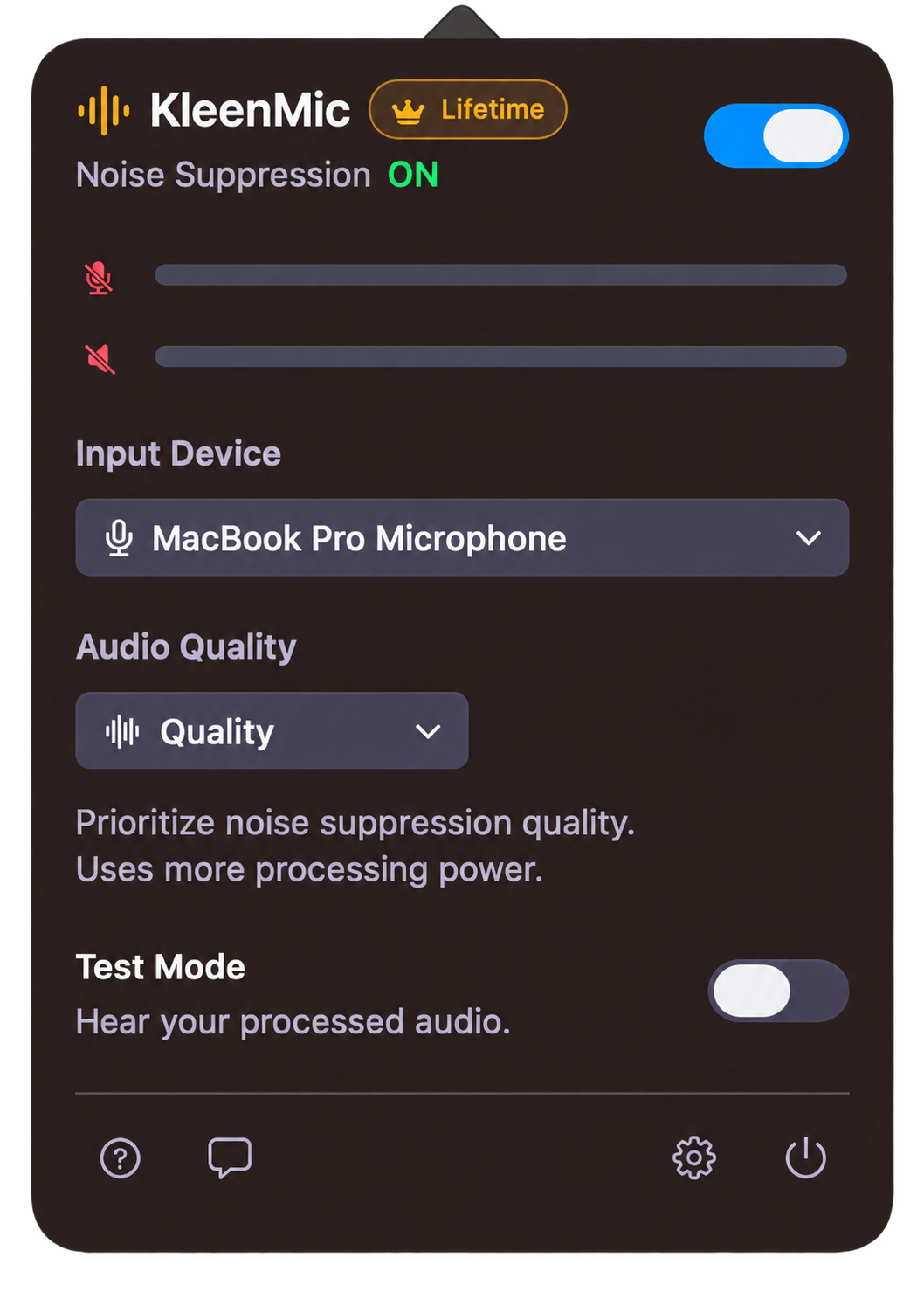
KleenMic is a microphone filter for Apple Silicon Macs running macOS 14 or later. If you want to evaluate it for a new Loom, use a short disposable recording before making the full video.
- Open KleenMic and select the physical microphone you intend to use.
- Enable noise removal. If you use live Test Mode with headphones, turn it off after the check.
- Open the Loom recorder’s microphone selector and look for KleenMic Microphone.
- Record about ten seconds: one normal sentence, a quiet opening after a pause and a sentence while typing.
- Download the recording and listen to the final file locally.
- Repeat with the direct physical input if you need a comparison, keeping position and gain unchanged.
Verify this in the Loom recorder you actually use. The desktop app and browser extension have different capture controls; this article does not present a completed compatibility or export test for either. If the filtered input is missing or silent, stop and check permissions and routing rather than record the whole tutorial.
Keep narration separate from computer sound
Your voice microphone and system audio are different sources. Loom’s system-audio guidance describes capture differences between its platforms. Review that source when recording a demo that also plays music, a call or a video.
Use headphones during the trial recording so playback is less likely to return through the microphone. Listen for doubled sound, echo or a voice that appears twice. Do not try to solve an unwanted duplicate source by repeatedly increasing microphone suppression.
KleenMic’s outgoing mic processing does not mean every audio source in a screen recording is filtered. Check the voice track and computer playback separately in the final file.
Approve the export you will actually send
- Listen to the beginning, a quiet passage and a noisy passage in the downloaded file.
- Confirm the full sentence survives the noise reduction.
- Check that your intended microphone was recorded and no playback source is duplicated.
- Keep the original and give processed exports clear names.
- If you upload to another host or editor, preview the result there as well.
If you choose to evaluate KleenMic, the 72-hour no-card trial gives you a way to test your own microphone. Continuing after the trial is an optional $20 one-time license for one Mac; trial launches need internet and paid processing requires verification at least every 30 days. The useful purchase question is whether the actual exported narration improves.
Common questions
Does Loom’s Noise filter change a downloaded video?
Loom’s current official FAQ says its Noise filter affects web playback while downloaded videos include the original audio. Listen to the downloaded file to check your deliverable.
Can KleenMic clean an old Loom recording?
No. KleenMic filters a live microphone input. Use an audio or video editor for an existing recording, or re-record the affected narration.
Will choosing a virtual microphone guarantee a cleaner MP4?
No. Verify the complete capture route with a short recording and its downloaded file. Input selection alone does not establish the result.
Should I use Loom’s desktop app or Chrome extension?
Use the recorder that fits your task and check its current microphone and system-audio controls. Test the exported file from that recorder rather than assume the two capture paths behave identically.
Sources and current details
Details reviewed on 22 October 2026. Older interface examples are dated in their captions. App menus and plan details can change.